Showing posts with label Misc. Show all posts

Thursday, 2 February 2012

DropBox

Yes, we all know that making regular backups is essential, don’t we? And for work stuff that’s probably done as a matter of course. Sometimes personal documents aren’t treated quite so diligently and run the risk of being lost in the case of a disk crash or the laptop accidentally falling off the desk.

Lately I’ve been trying out DropBox as a means to help backup certain documents, but also to gain various other benefits.

When you sign up, DropBox gives you a free 2GB of online storage. The way it works is that you install DropBox onto your Mac or PC and it sets up a DropBox directory, which is then monitored. Any files you put into this directory (subdirectories therein) will be automatically backed up and mirrored to the online DropBox storage.

Moreover, if you have DropBox installed on several machines (physical or virtual) changes to files in a DropBox folder are automatically and instantly synchronised to those machines as well (based on the size of files and Internet connection speed).

If you are disconnected, the changes will stack up and be applied to the online version when you reconnect.

If you change a document from two machines, DropBox doesn’t bother trying to merge the changes – it stores two separate versions.

Additionally, DropBox keeps a record of previous versions of your files, which can be restored at will, and which do not eat into your storage allocation.

If you need access to these stored documents when not at your own machine you can access them after logging in to the DropBox web site.

Additionally you can share folders of files within your DropBox storage to specified people.

I’m finding DropBox a really convenient way of working on documents and projects from wherever I happen to be working, with whatever machine, with the peace of mind that things are automatically backed up.

If you feel like trying DropBox, please sign up and install via this referral link, which means that you will get an extra 250MB of storage on top of your initial 2GB (as will I <g>).

Saturday, 4 June 2011

Booting a VM from USB

Recently I started up my Linux VM for the first time in some months. It has Ubuntu installed on it. It had version 9.10 on it, known as Karmic Koala. I found out pretty quickly that this version is rather dated, and that support for it ended in April 2011. I decided to upgrade but was unsure whether to go for 10.04 LTS (Lucid Lynx), 10.10 (Maverick Meerkat) or 11.04 (Natty Narwhal) but didn’t want to fully install each one just to see what it was like.

Popping along to the Ubuntu download page I found that they offered the 10.04 Long Term Support (LTS) version or the current 11.04 version for download as a CD .ISO image and was reminded of the fact that the CD has the option of running as a ‘Live CD’, meaning you don;t have to install it – you can boot off the CD and run it directly from there. That’s great – I can pull the .ISO files down, connect my VM’s CD drive to the .ISO imge (as VMWare Workstation allows you to do, and I’m sure the other VM software, Virtual PC and Virtual Box do also).

Then I noticed the suggestion that you can burn the ISO to a bootable USB device and boot off that. This sounded interesting. When I decide on a suitable Ubuntu version, I can burn it to a spare USB memory stick and free the PC of the .ISO file, potentially allowing me to boot pretty much any PC into Ubuntu if the need or desire arises.

Well, I figured I’d better test this by booting my VM off the USB device. The first problem was how to make a bootable USB device from the .ISO, but this one is easily solved. The Ubuntu download page has a link to the Universal USB Installer from PendriveLinux.com. This makes the whole process trivial and even allows any spare space on the USB stick to be used as persistent storage for the installed Linux OS.

Universal USB Installer

Having got a bootable USB device with Ubuntu on it I need to prove that one of my virtual machines can successfully boot from it. And this is where things got sticky. It seems the VMWare BIOS does not support booting from USB devices, which seemed to rain on my parade, somewhat. Until I did a little searching and came across a free boot manager called, simply, Plop. You can read up all about Plop on their Boot Manager info page.

In short though, if you download the current Plop Boot Manager .zip archive and unzip it you’ll find 2 key files in it: plpbt.img (currently 1,474,560 bytes) and plpbt.iso (currently 327,680 bytes). The .img file is a bootable floppy disk image, hence being 1,440 kB (floppies used to be described as having a capacity of 720 kB or double that, which was referred to as 1.44 MB). The tiny .iso is a bootable CD image. If you connect one of these to the virtual floppy drive (if present, though there should be an option to add it if not) or the virtual CD drive in a VM (and ensure the BIOS is set to boot off the legacy floppy device or the CD-ROM drive before the hard drive) then Plop will be invoked.

Plop’s job is to present you with all the available bootable devices to boot from, including USB, and in that it works just great and allows the VM to boot successfully from a USB device.

Plop Boot Manager

Of course what you don’t see in the screenshot above is that all those dots are actually a very smooth star field you’re heading through.

Ok, so there we go – I now have a bootable USB device and I can boot any reasonably modern computer from it and can also boot a VM from it. One final thing I thought would be useful was to set up a dedicated dummy VM that could be used to boot from CD or USB devices, if desired, to avoid occupying one o the regular ‘real’ VMs. I wanted this dummy VM to take up as little space as possible and so, preferably, not have to chew up physical disk space by allocating a virtual hard drive, which after all won’t be used.

I went through the steps of creating a new VMWare VM, decided to tell VMWare that it would be a Linux guest OS that would be installed, but that it would be installed later and found there was no way of specifying no hard disk in the VM. I opted to use an existing virtual disk from another VM, but wasn’t too happy about making this dummy VM dependant on another one that my get moved to another physical drive at some point. So when the VM setup was complete I took a look in the new VM’s .vmx file, which contains all its main settings.

Near the top I saw these values:

scsi0:0.present = "TRUE"
scsi0:0.fileName = <path_to_some_VMs_vmdk_virtual_disk_file>

The last piece of the puzzle was to simply set the scsi0:0.present value to "FALSE". Now I have a trivial VM with no hard disk whose sole purpose is to boot an OS from either a CD, via a connected .ISO file, or from a USB device, which can be done by connecting the Plop floppy image or CD image to the VM.

Thursday, 7 April 2011

Olde English Criminals

Following on from the post about old English jobs that have faded away, I happened upon a list of terms for old specialist criminals from the eighteenth century, long since disused.

I found them in the 2008 QI Annual that covers the letter E, so all credit to QI for finding these. You can pick up the annual for a modest sum on Amazon.


However I’ve added to QI’s original list of 16 with a bundle of extra ones from The Lexicon of Thieves Cant (based on the 1811 Dictionary of the Vulgar Tongue. A Dictionary of Buckish Slang, University Wit and Pickpocket Eloquence and also Captain Grose's 1785 dictionary).

Criminal name Description
Adam Tiler a pickpocket's associate, who receives the stolen goods, and runs off with them.
Angler pilferer or petty thief who, with a stick having a hook at the end, steals goods out of shop windows, grates etc. Also someone who 'draws in' victims in order to rob them.
Autem Diver pickpocket who operates in churches and temples.
Autem Mort a female beggar who hires children in order to inspire charity.
Bawdy-Basket woman posing as sellers of pins and needles or pornographic books to disguise her real game, which was stealing linen clothes off hedges.
Bene Feaker counterfeiter.
Bene Feaker of Gybes counterfeiter of false passes.
Blue Pigeon thief who steals lead off houses and other buildings.
Bob shoplifter's assistant. One who receives stolen goods.
Bubber a thief who steals from taverns.
Buffer-Nabber professional dog-thief who killed the animal to sell its skin.
Bully-Huff hung round brothels, surprising and threatening the customers by claiming that the woman they were in bed with was their wife. In between times, they intercepted lucky gamblers as they left the casino to relieve them of their winnings.
Bung-Nipper stole the gold buttons from cloaks and the silver tassles from hatbands.
Clank Napper a silver tankard stealer.
Clapperdogeon professional vagabond, a varlet who wore a patched cloak and three hats, one on top of the other.
Dommerer beggar posing as an escaped slave who had had their tongues cut out by the Turks for refusing to accept Islam.
Glimmerer woman who went around in floods of tears claiming that her house had been burned down; alternatively she set other people's houses on fire, in order to loot them in the confusion.
Figure Dancer one who alters the numbers on notes of credit or other paper money.
Footpad a common thief.
Foyst a pickpocket.
Jack in a Box a card-sharp.
Lully Prigger thief who steals wet clothes off clothes lines
Mumper genteel beggar.
Napper of Naps a sheep stealer.
Pad Borrower a horse thief.
Poulterer a man who opens mail and steals the money enclosed within.
Prigger either a member of a three-man shoplifting team or a horse-thief.
Prigger of Prancers a horse thief.
Prigger of Cacklers a henhouse thief.
Rattling Mumper beggar who begs from coaches.
Reader Merchant a pickpocket.
Ruffler armed robber or beggar disguised as an out of work soldiers.
Rum Bob skilled apprentice thief.
Rum-Bubber specialised in stealing silver tankards from taverns.
Rum Diver skilled pickpocket.
Rum-Dubber skilled lock-picker.
Rum File skilled pickpocket.
Rum Padder skilled highwayman.
Swaddler not only stole from their victim but beat them up as well, sometimes murdering them into the bargain.
Swig-Man covered their roguery by pretending to be an itinerant haberdasher.
Strowler con man who convinced country gentlemen to 'lend' him money so he could go to London.
Tatmonger card-sharp.
Tayle drawer a thief who steals swords from a mans belt.
Wiper drawer a thief who steals handkerchiefs.

Olde English Jobs

I like reading about the English language. It fascinates me.

The grammar rules and syntax interest me, as does the way words fade in and out of the language and morph from form to form along their useful lives.

I was happy to recently bump into a colleague from University who I’d lost track of, all the more as he seems to have collected a lot of interesting language-related links and posts on his site.

In a recent local town council magazine Keith Turner & Daniel Parslow provided a good catalogue of old job titles that used to be common in market towns such as Aylesbury, where I live, that have fallen into disuse over the years.

All credit to Keith and Daniel for this list, which I am typing up to make more widely available.

Job title Description
Abigail Lady's maid
Ale-conner Official who tested the quality and measures served in pubs
Ankle beater Young person who helped drive cattle to market
Boot catcher Servant at an inn that removed travellers’ boots
Bozzler Parish Constable
Bridewell Keeper In charge of the lock-up or jail
Bunter Female rag and bone collector
Bog Iron Hunter Searched for Iron Ore in bogs and marshes
Cartomancer Fortune teller using cards
Chapeler Hat maker
Costermonger Peddler of fruits & vegetables
Clapman Town crier
Clod hopper Ploughman
Donkey Man Passenger carriage driver
Eyer Made holes in sewing needles
Feather wife Woman that cleans feathers for sale
Fagetter Firewood seller
Flauner Confectioner
Frobisher Cleaned and polished metal
Gabeler Tax collector
Gelder Animal castrator
Gong Farmer Emptied privies and cesspits
Greensmith Worker in copper
Hobbler Towed canal boats
Jongleur Travelling minstrel
Knocker Upper Woke people up
Knock Knobbler Dog catcher
Layer Paper mill worker
Leech collector Waded through rivers to collect the leeches which attached to him
Lungs Alchemist's assistant who fanned the fire
Mud lark River bed scavenger
Mule Scavenger Children who would crawl under fabric mills to collect cotton and fluff
Mountebank Seller of fake medicines
Night Soilman Emptied cesspits, ashpits and outside toilets
Nob Thatcher Wig maker
Osler Bird catcher
Ponderator Weights & measures inspector
Powder monkey Boys who supplied ship cannons with gunpowder below deck
Quarrel Picker Glazier
Ratoner Rat catcher
Resurrection Man Provided surgeons with fresh cadavers with which to learn their craft
Rodman Surveyor's assistant
Saltpetre man Collected urine and dung used in the manufacture of saltpetre
Searcher of the Dead Sought plague victims
Secret Springer Watch spring maker
Sexton Church caretaker - sometimes dug graves and rang the church bells
Smoke Doctor Specialist in the construction or repair of chimneys
Tapster Barman/woman
Town Husband Collected dues from the fathers of illegitimate children of the parish for their upkeep
Treadmill Operator Trudged atop a giant mill wheel treadmill to push it round
Upright Worker Chimney Sweep
Vamper Made the upper part of a boot or shoe covering the instep and sometimes extending over the toe
Webster Operator of looms
Yatman Gatekeeper

Sunday, 3 April 2011

Google Maps Data Files

The My Maps feature in Google Maps is really handy for planning out a quick route or just seeing how far it is from one place to another. You can also drop on various place markers, add text to them and also add photos as I’ve done, for example, with my City of London Boundary dragons map.

As well as storing all the maps in the My Maps section of Google Maps you can also download any of them as a .kml file, which contains XML describing the map features, waypoints, etc. in the Keyhole Markup Language. The download option is available when you are editing a map and is accessed via the option View in Google Earth, which becomes available on the toolbar on the right as soon as you start editing. Clicking the option downloads a KML file.

The problem is that the .kml file doesn’t really have much data in it. It has the name and the description of the map, and the name and description of any map lines but the map data is not downloaded in the file. Instead it is left in Google Maps and the .kml file contains the URL to the map data in a <link> node.

While this abbreviated, deferred content is quite suitable for Google Earth’s consumption, if you were hoping to upload the map to some other mapping application the chances are it won’t get you very far. Typically, mapping applications expect to find the data in the .kml file.

Fortunately we can resolve this little issue by looking at the URL that Google My Maps offers for downloading the .kml file in the first place. Let’s take a look at the links available, using that Boundary Dragon map as an example.

Firstly, looking at the link offered to you if you ignore the Google Earth viewing option, but just click the Link option on the toolbar. The link it offers to paste into IM or email looks like this (with various bits of not-strictly-necessary junk taken out, for brevity):

http://maps.google.com/maps/ms?msa=0&msid=203846768851680872761.00046ae298586b10c2e49

Now let’s compare with what link is executed when you click on the View in Google Earth toolbar option (again, sanitised for easy viewing):

http://maps.google.com/maps/ms?msa=0&msid=203846768851680872761.00046ae298586b10c2e49&output=nl

As you can see, there’s an extra value added into the link specifying that the Google Maps server should output a file containing a network link (which appears to be what NL stands for). If you now look at the link contained in the .kml file it looks (after cleaning up) like this:

http://maps.google.com/maps/ms?msa=0&msid=203846768851680872761.00046ae298586b10c2e49&output=kml

If you paste this link into your browser’s address bar it will download another .kml file with full data inside it.

So, the answer is to take the original URL in the View in Google Earth hyperlink and replace the =nl with =kml. Easy.

Alas this does not work if you try and use =gpx – Google Maps is not interested in supporting the GPX format, commonly used by many mapping sites, however Google Earth is happy enough to load up GPX files.

Wednesday, 30 March 2011

Google Web Fonts

There appears to be an endless series of interesting things that Google offers developers that I've yet to bump into...

One more to knock off the list now is Google Web Fonts (and the Google Web Fonts API). There’s a great list of fonts there that are easy enough to embed into a web page (assuming you can get at the <head> tag).

Additionally, designers who want to play with these fonts can find a shortcut way of downloading/adding them all en masse in this blog post.

And yes, I should have showed off a few of the fonts in this post, but that involves messing with the whole blog template to get at the <head> tag, so I opted for the easier route of not doing so :)

Thursday, 10 March 2011

Borland’s Old Testament Histories

I was just indulging in a spot of nostalgia over Verity Stob’s occasional historical archives that covered the to-ings and fro-ings of Borland and found that some of the old links that people had were no longer working. Also one of them seems to be lost forever in the current version of the Internet.
The Internet Archive Way Back Machine came to the rescue once more!
Here is the full (as far as I can determine) historical archive, which of course will mean nothing to those who weren’t immersed in the trials and tribulations of the life of Borland over the last couple of decades. Rather amusing to those of us who were though :o)

Borland Old Testament Histories
  1. Book of Anders (1996)
  2. Yocam hokum (1998)
  3. Book of Yoc-am (contd) (1999)
  4. Borland Revelations (2004)
  5. Borland's Delphi Goodbye (2006)
  6. A reading from the second book of Codh (2008)
  7. Sons of Kahn: The Apocrypha (2010)

HTML Source Code Formatting

When writing web-based articles on programming topics there comes a point when you have to insert a swathe of source code. There are various choices to make here.

You can simply embed the code between <pre> and </pre> tags and be done with it, and in the case of a small code clause or single statement that might do.

But for several lines of code, a whole subroutine or more, then this quickly becomes almost unparsable by the reader. This is particularly so for those who are used to working in a code editor that offers syntax highlighting (something we all take for granted nowadays).

So then we come to the question of how to get your syntax highlighted code from, say Visual Studio, into HTML, still supported a nice array of colours.

There are actually quite a few online web-based source code formatters, and also plug-ins for blog editors, such as Windows Live Writer. I tried a few of them out and settled on the multi-language source formatter at http://manoli.net.

This CSS-based formatter supports C#, Visual Basic, HTML, XML, T-SQL and PowerShell highlighting options and generates HTML that conforms to the HTML 4.01 specification. It also has options for alternating line backgrounds, line numbers and a choice as to whether the style sheet is embedded or expected to be referenced.

I like it, and kudos to the author. It was very helpful to me when writing a lengthy article recently that involved *many* code snippets and listings.

Thursday, 3 March 2011

Old Blog Posts

I mentioned somewhere that I had a couple of faltering attempts at blogs in the past. I posted a few things, but the blogs died and disappeared off the web, so I lost them. This was a shame, as one of them was a vaguely detailed analysis of a tricky problem causing a VBScript overflow on some hardware, which was partly assessed with WinDbg. I couldn't remember how the situation progressed and was rather cross that I hadn't kept a record of the old blog posts.

And then I remembered the Internet Archive Way Back Machine.

And so now I have all my old blog posts back. I’ve popped them all in one of this blog’s pages over there on the right.

There are 6 old posts in all:

  • Conditional Defines, etc. from 19th June 2004. This post runs through various conditional symbols defined by various versions of Delphi, as well as the conditional constants defined in Delphi 6 and later. Various product release dates are also listed.
  • Pure evil? Me? from 19th June 2004 . A trawl through the guts of .NET’s WinForms to get a list of all the windows in a WinForms app, with masterful code from Embarcadero’s Roy Nelson.
  • Stories Of The Demise Of Brian's Blog Are Greatly Overstated from 26th November 2006. An intro post on a new blog I briefly started.
  • Shortcuts from 26th November 2006. Some useful Windows keyboard shortcuts and tips.
  • TechEd Developers 2006 from from 27th November 2006. A report from the Microsoft conference I spoke at.
  • Problems at Work from 20th December 2006. An analysis of a gnarly problem on certain hardware that resulted in an unexpected overflow message in VBScript.

Wednesday, 2 March 2011

Home Computing Nostalgia

When I were a lad (to use the dialectal verb form preferred by some residents of the northerly parts of my country) the wide spread use of the the IBM PC or compatible was still some years away, so in my adolescent period the various home computers on the market (or 'games machines' as they more typically were) were rife among my crowd.

In the circle I hung out with most of the popular computer models were present: the Commodore-64, Commodore Amiga, Vic-20, Dragon 32, Camputers Lynx, Sinclair ZX81 and the Sinclair Spectrum. All fine machines for various reasons, although the choice of materials used to create the keys of the ZX80, ZX81 and Spectrum still baffles me. The ZX80 and ZX81 had odd clicky, flat membranous keys and the Spectrum had rubbery, squishy keys…

Anyway, I didn’t have any of those models – I had a BBC Micro Model B (aka a Beeb). This was Acorn’s successor to the Atom and predecessor to the Electron and was to be called the Acorn Proton until the BBC took the machine on with its BBC Computer Literacy Project and pushed it heavily in the education sector.

The Beeb was never the best at graphics in comparison to some of the other machines more directly targeted at games, although many of the published games pushed its abilities to the limits as time drew on.

I cut my teeth with the Beeb, learning about how computers worked, having fun with graphical games and text adventures, and doing the other thing that was so common back in the early 80s. There were lots of magazines targeting these computers and they all had lots of program listings, which the keen and patient would painstakingly type in to get another little game to play.

Typing in published game listings was very commonplace. Typos in published game listings were also very commonplace. These two facts led to two results. Firstly, I learned how to type reasonably quickly, albeit the hunt and peck approach with a small subset of fingers (alas, to my chagrin, I never did learn to touch type). Secondly, thanks to a Breakout game that I spent a long time typing in from an issue of Computer & Video Games, and then spent days if not weeks not only fixing the typos, but also fixing the logic problems, by the time the game was working I had read so much of the BBC BASIC manual and the system reference manual that I had morphed into a BASIC programmer. So poor proofreading turned me into a coder. An unexpected result.

I had quite a few games for the Beeb and was not really that good at many of them (possibly due to lack of time investment in them) other than Aardvark Software’s Zalaga (a re-make of the arcade game Galaga, penned by Orlando). Some of the games were text adventures (apparently now termed interactive fiction) and I wasn’t very skilled at completing those either. The one that occupied me the most was Acornsoft’s Countdown to Doom by Peter Killworth.

BootupRecently, as an opportunity to show old-school technology to the younger generation, I found the BBC emulator BeebEm (which is just one of several emulators available, but is the one I’ve been playing with). This is an awesome endeavour, completely emulating various machines in the BBC Micros series, including the Model B and Model B Plus as well as the BBC Master 128. It even supports the second processors you add onto the Beeb (65C02, Z80 or ARM).

Pac-ManThe emulator web site has links to sites with images of various old games, so immediately I was lost in my own teenage years, bouncing from classic game to classic game.

The Beeb was known for having various very faithful clones of arcade games released by the host software company Acornsoft. So for Pac-Man we had Snapper, Defender was Planetoid, Scramble was Rocket Raid, Galaxian was Arcadians, Frogger was Hopper.
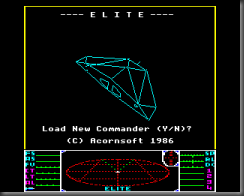
EliteOf course there is the classic Elite (you can download it from the web site of one of the co-authors), which started life incomprehensibly squeezed into the Beeb’s paltry 32kB RAM. This set a new bar for games in such small devices and is said to be the title that set the mould for modern space flight simulation games. The idea was you were a space trader navigating around 8 galaxies each containing 256 planets. Between the planets you often were forced into battle with the Thargoids.

Zalaga
After all the colourful (and not so colourful) graphics I spent quite a few hours revisiting Countdown to Doom, finding the things I’d totally overlooked and then getting stuck again. I went through solving the puzzles, mapping the mazes, and collecting the ‘treasure’ initially on a PC version of the game I found, as the BBC version had some corruption and crashed out any time something unrecognised was entered.

DoomThen I worked out how to fix the corrupted line in the BASIC code and tried to replicate the solution there, only to find that the PC version was somewhat larger with more locations and items to collect and use. Either the low memory in the BBC put a fixed limit into what was possible to build in, or the game map was extended in the subsequent version coded for the PC. Also some of the commands had changed slightly, and multiple commands on one line were not available.

But now, after a break of around a quarter of a century, I have solved Countdown to Doom.

Twice.

Yay!

Next stop is to see how the Nintendo 64 emulators have come along. The last time I tried them out, Goldeneye didn’t play so well in 1964, but I should probably do a quick compare of the current version of 1964 as well as Mupen64Plus, Project64 and MESS.

Monday, 28 February 2011

"Hello World"

Hello reader.

My name is Brian Long.

This is my blog.

This isn’t the first blog I've had, but the previous ones didn’t get much attention. Who knows? Maybe this one won’t either, but the plan is to garnish it with attention for both readers and also myself. As I find things I consider interesting, the goal is to post them here so I can find them, and perhaps also for the benefit of any readers who happen by here.

I've added a page that tells you stuff about my background and what I do for work and for fun. See it? It's over there to the right in the Pages list under the Home link.

Subsequent posts should be more interesting, at least from a technical perspective.

So, until we regroup....